Put charts in emails
Make one chart in the visual editor, or automate a recurring report with the API. Either way, the email receives a plain PNG image – no JavaScript, canvas, or chart runtime in the inbox.
A real PNG inside an email
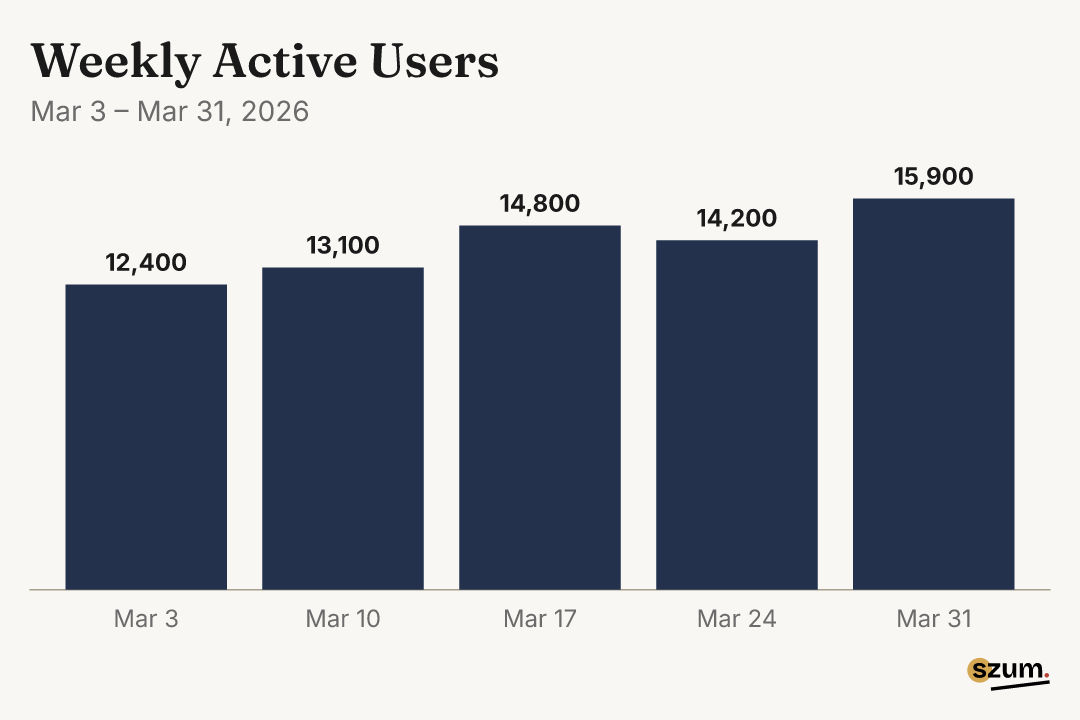
The preview below uses a PNG generated by Szum – the same file type you insert into Gmail, Outlook, a newsletter, or a transactional email template.
Acme Analytics
reports@acme.example · to you
Your weekly product report
Weekly active users closed March at 15,900, up 28% from the beginning of the month.
Choose the workflow that matches the send
Download and insert
For a newsletter or one-off update: edit the example, download its PNG, and insert it like any other image. No code required.
Edit this exampleKeep an image URL in the template
For recurring or transactional email: create a stable image URL and update its chart before each scheduled send.
Use saved chartsFrom the editor to the inbox
- 1. Start with the email-ready example. It already uses a 540 × 360 canvas, PNG output, and 2× export scale for crisp text.
- 2. Replace the example data. Paste spreadsheet rows or edit the table, then adjust the title, chart type, theme, and labels.
- 3. Download and insert the PNG. In Gmail or Outlook, choose Insert image. In a newsletter or campaign editor, add an image block and upload the file.
Automate a recurring email chart
Create the saved chart once, keep its image URL in your email template, and replace the document before each send. The URL stays the same, so the sending integration does not have to change.
import { Szum } from "@szum-io/sdk";
import { Img } from "@react-email/components";

const szum = new Szum({ apiKey: process.env.SZUM_KEY! });

const chart = existingChartId
  ? await szum.charts.update(existingChartId, document)
  : await szum.charts.create(document);

<Img
  src={chart.imageUrl + ".png"}
  alt="Weekly active users rose to 15,900"
  width={540}
  height={360}
  style={{ width: "100%", maxWidth: "540px", height: "auto" }}
/>
The API key is only used by your server when it creates or updates the chart. Recipients load the public image URL without credentials. Email-client caching means an old message is not a guaranteed real-time dashboard, even when the document behind the URL changes.
A different chart for every recipient
Generate each chart in your sending pipeline and put its resulting image URL into that recipient’s message. A saved Szum URL does not fetch recipient data when the email is opened.
What email clients actually support
- Use PNG by default. It is the most predictable format across an unknown mix of clients.
- Keep the displayed chart around 540px wide. Export at 2× resolution for crisp text, then constrain it with the HTML width and inline styles.
- Expect some recipients to block remote images. This is especially common in desktop Outlook and managed company inboxes.
- Never make the image carry the message alone. Put the key result in HTML text and describe the takeaway in the image alt text.
Hosted image URL or CID attachment?
| Feature | Hosted PNG URL | CID attachment |
|---|---|---|
| Email payload | Small HTML reference | Image bytes in every message |
| Image blocking | Remote images may require permission | Client and security-gateway behavior varies |
| Sending pipeline | Insert or template one URL | Generate, attach, and reference every image |
| Best fit | Transactional email, digests, and alerts | Offline or tightly controlled environments |
A hosted URL is usually the simpler production path. A CID attachment can be appropriate when the message must be self-contained, but forwarding, webmail, and security gateways can still affect how it appears.
Where Szum is not the whole solution
- If you are copying one existing Excel chart into one Outlook message, a normal copy-and-paste may be faster. Use Szum when you want a more considered design or a repeatable workflow.
- If the chart must remain visible with images completely disabled, use an HTML table or an email-specific HTML/CSS visualization. Szum produces image charts, so the surrounding text remains the accessibility fallback.
Make the chart before you build the integration
Paste your data, see the result, and export a PNG. No signup required.
Frequently asked questions
- Can I create a chart for an email without coding?
- Yes. Open the Szum editor, paste or edit your data, choose a chart and theme, then export a PNG. No signup is required to create or download the image.
- Will the chart include Szum branding?
- Free and keyless renders include a small Szum credit. Creator and Pro renders omit the credit by default, including images created through the API or a published chart URL. See the pricing page for plan details.
- What image format should I use for charts in email?
- PNG is the safest default for an unknown mix of email clients. It keeps chart text and lines crisp and avoids the uneven handling of linked SVG and WebP in older Outlook versions and some webmail clients. Export at 2× resolution, then constrain the displayed width in the email.
- Do chart images work in Outlook?
- Yes. Outlook displays PNG charts like other images, but some Outlook desktop configurations block remote images until the recipient downloads them. Put the key number in HTML text and write descriptive alt text so the message still works without the image.
- Can a chart update after the email is sent?
- You can update the document behind a saved Szum URL, but email clients may proxy or cache remote images. Treat the URL as a stable delivery mechanism, not as a guaranteed real-time dashboard inside old emails.
- How is Szum different from QuickChart?
- Both generate chart images from a URL. QuickChart follows Chart.js configuration and is a natural fit when you already use Chart.js. Szum uses a purpose-driven chart definition and curated themes for designed output with fewer styling decisions. See the full comparison.